
6labs Gameplay Recorder for Windows
This guide covers the 6labs Gameplay Recorder on Windows: installing it, completing the one-time setup, and recording gameplay. For a high-level description of how recording works, see the Gameplay Recorder overview.
1. Prerequisites
The following prerequisites must be met to set up the Gameplay Recorder:
- Windows 10 or later, 64-bit only.
- Your game's
App ID. If you already have one, use it. Otherwise, contact your 6labs sales representative to obtain one. - Make sure enough disk space is available before you start a new recording.
2. Gameplay Recorder Installation
Follow the steps below to install the Gameplay Recorder:
- If you've received a custom installer from us, use that to install.
- Otherwise, download the latest version of the Gameplay Recorder.
- Go through the wizard by following the on-screen instructions.
3. First-run Setup
A one-time setup is required to start recording your gameplay.
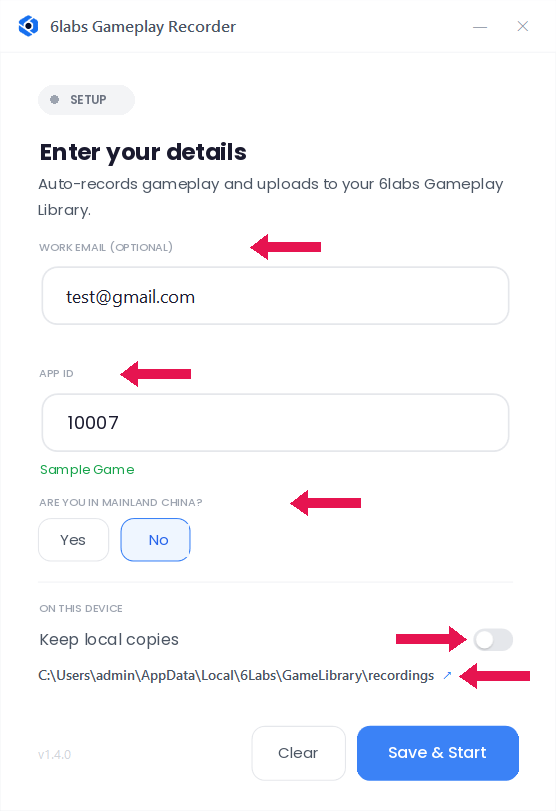
- Enter the details:
Field What to enter Work email (optional) Enter your email address. App ID Enter the App ID for the game, for example 10007. When the App ID is entered, the recorder validates it and displays the corresponding game name.Are you in Mainland China? Select Yes or No, based on your region.
*For users in Mainland China, uploaded videos are stored and retained in China.Keep local copies Turn this on if you want recordings to remain stored on the PC after upload. Turn it off if you do not need local copies of the recordings. You may click the link to the recordings folder, as highlighted above. The recordings folder contains recorded gameplay sessions. - Click Save & Start.
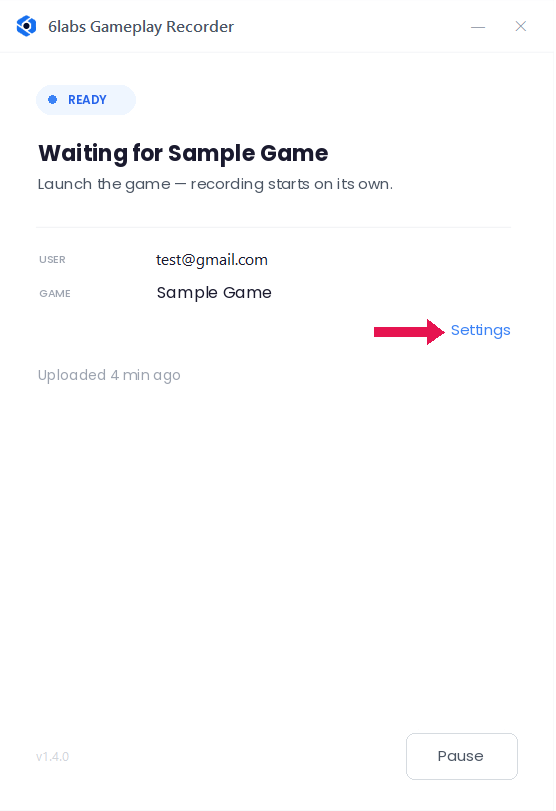
- The window switches to Waiting for <game>.
- To change any of these details later, open the window and click Settings, as
shown below:
4. Recording Gameplay
The recorder starts automatically at system startup and waits for you to launch the configured game. It does not begin recording until the game is launched.
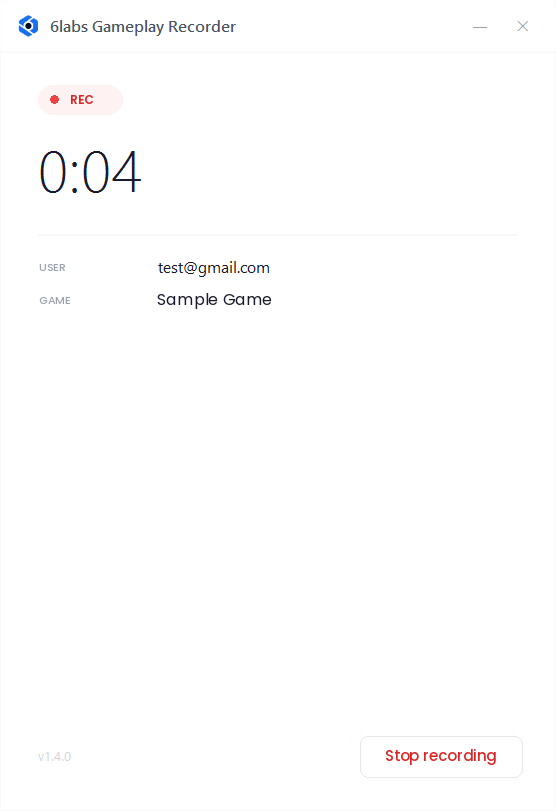
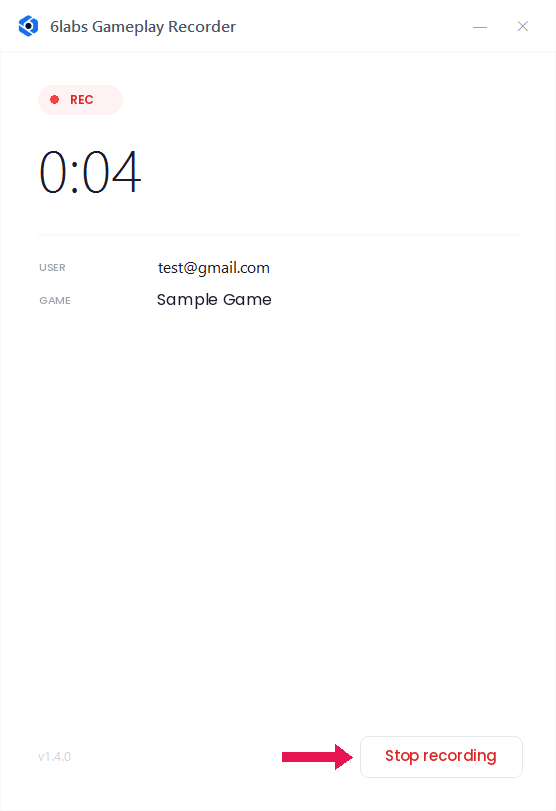
- Launch the game. When its window appears, recording starts automatically and the window shows
REC with an elapsed clock.
- Play the game as you usually do.
- Once you close the game, the recording stops, upload starts in the background, and the recorder goes back to waiting.
4.1 Recording Controls
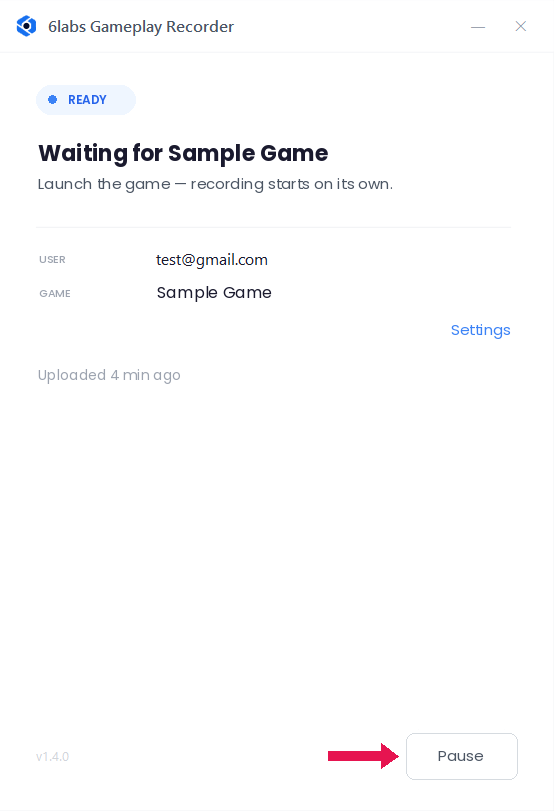
- Pause: Temporarily pauses recording. No gameplay is recorded until you click
Resume.
- Stop recording: Ends the current recording and asks whether you want to
Stop & upload or Stop & discard.
4.2 Quitting the Recorder
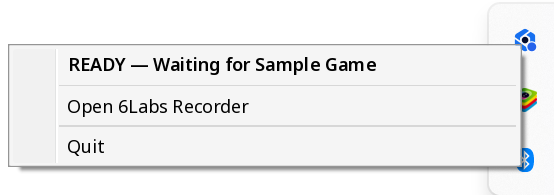
Right-click the tray icon and select Quit.
Note
- Clicking the X button on the Recorder window only hides it; the application continues running in the system tray.
4.3 Status Chips
The status chip in the window and the tray icon indicate the current status:
| Chip | Meaning |
|---|---|
SETUP |
Not configured yet — enter an App ID. |
READY |
Watching for the game; recording starts when it launches. |
REC |
Recording right now. |
UPLOADING |
A finished session is being uploaded. |
PAUSED |
You paused it; nothing records until you resume. |
ERROR |
Something needs your attention — read the message in the window. |
5. Recording Uploads
Uploads happen automatically after each session. These recordings are available in your 6labs Gameplay Library.
Note
- If an upload fails, the recordings are saved locally even if the Keep local copies option is turned off.
- These files are available in the recordings folder. Go to Settings and click the recordings folder link, as shown below.
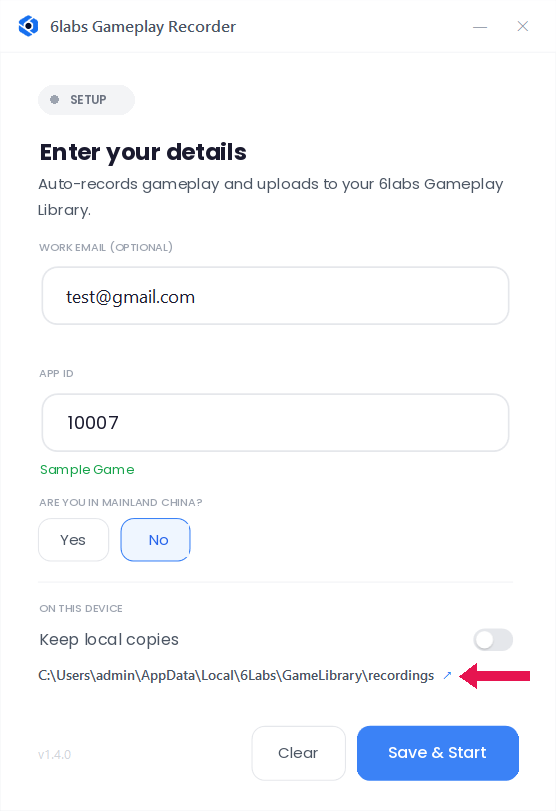
Table of Contents
Table of Contents
- Overview
- For Windows
- For Android
- For iOS