
6labs Gameplay Recorder for iOS
The 6labs Gameplay Recorder for iOS is a lightweight app that records your screen while you play and uploads each session to your 6labs Gameplay Library.
You decide when to start and stop recording. The recorder captures your entire screen while recording is active, just like the built-in iOS screen recorder. When you finish, the session uploads to your 6labs Gameplay Library in the background, unless you choose to discard it.
1. Prerequisites
The following prerequisites must be met to set up the Gameplay Recorder:
- An Apple device running iOS 16 or later.
- Your game’s App ID. If you already have one, use it. Otherwise, contact your 6labs sales representative to obtain one.
- Make sure the device has enough free storage to record gameplay.
2. Gameplay Recorder Installation
Follow the steps below to install the Gameplay Recorder:
- Install 6labs Gameplay Recorder from the App Store.
- Once installed, open 6labs Gameplay Recorder on your device.
3. First-run Setup
A one-time setup is required to start recording your gameplay.
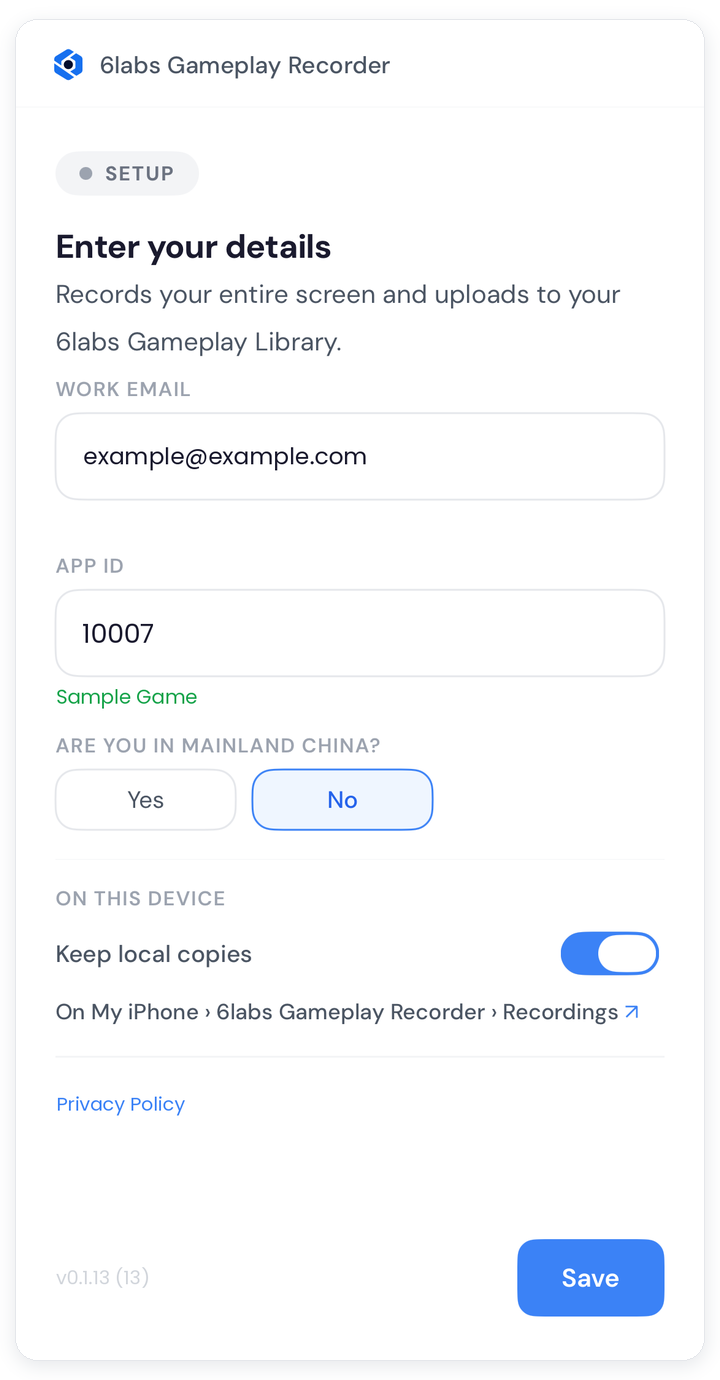
- Enter the details:
Field What to enter Work email Enter your email address. App ID Enter the App ID for the game, for example 10007. When the App ID is entered, the recorder validates it and displays the corresponding game name.Are you in Mainland China? Select Yes or No, based on your region.
*For users in Mainland China, uploaded videos are stored and retained in China.Keep local copies Turn this on to keep recordings stored on your device after upload. Turn it off if you do not need local copies of the recordings. Recordings are saved in the Files app under On My iPhone › 6labs Gameplay Recorder › Recordings; tap the path below the toggle to open the folder. - Tap Save.
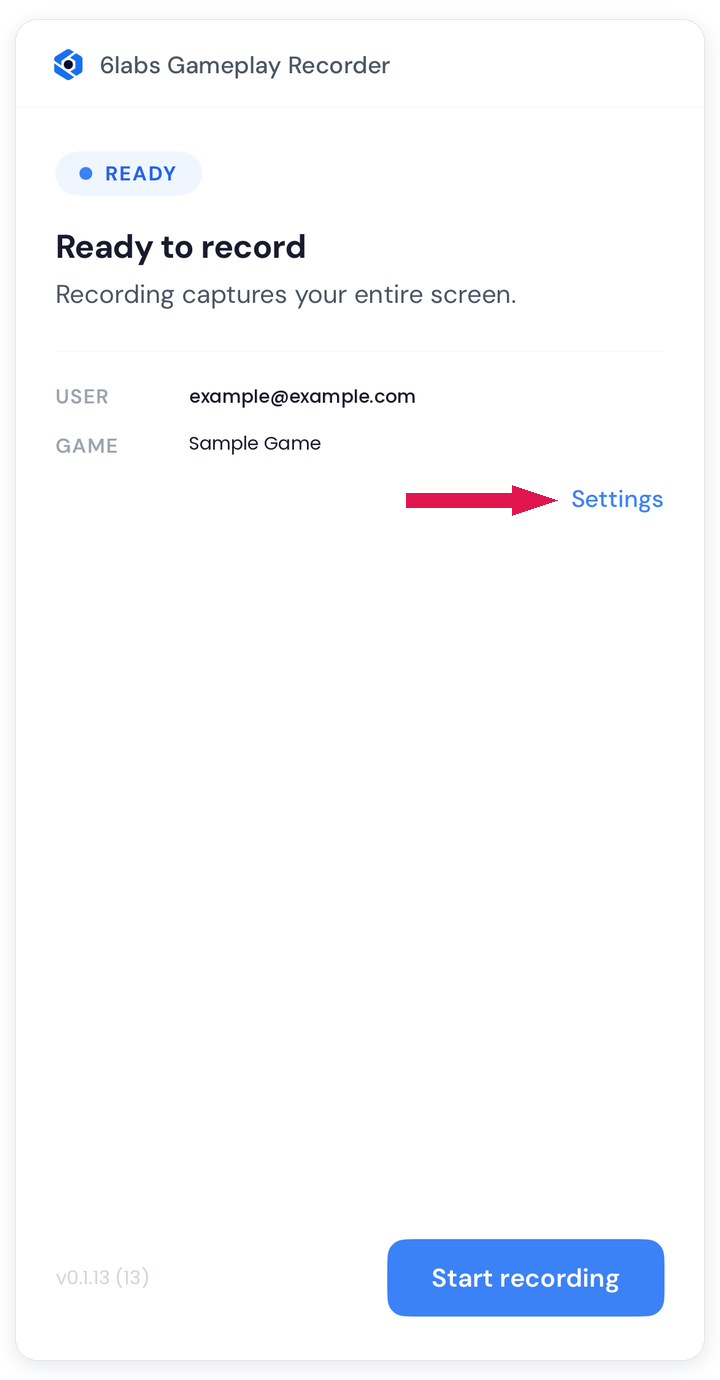
- The screen switches to Ready to record and shows your email and game.
- To change any of these details later, tap Settings, as shown below:
4. Recording Gameplay
The recorder does not start or stop on its own. Because of iOS limitations, it records your entire screen for as long as a recording is active, so do not switch apps while playing. Start and stop each recording yourself, as shown below.
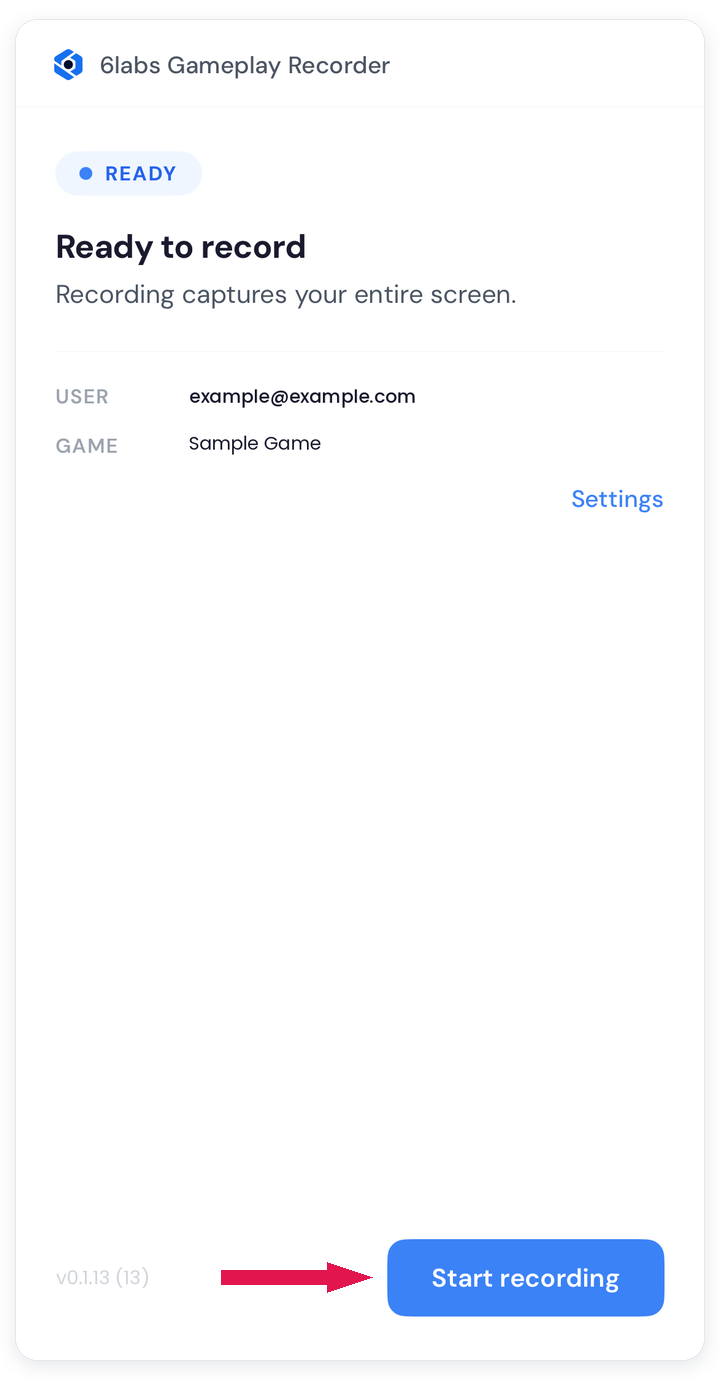
- Open the Gameplay Recorder and tap Start recording.
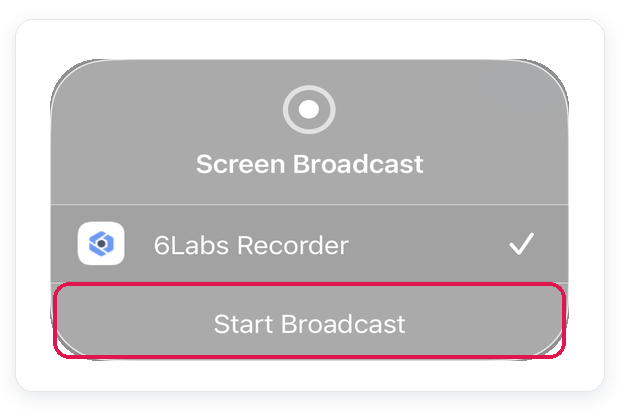
- In the Screen Broadcast sheet, make sure 6labs Recorder is selected, then tap Start Broadcast.
- Switch to your game and play as usual. A red indicator at the top of the screen shows that recording is in progress.
- To keep notifications out of your recordings, turn on Do Not Disturb before you start.
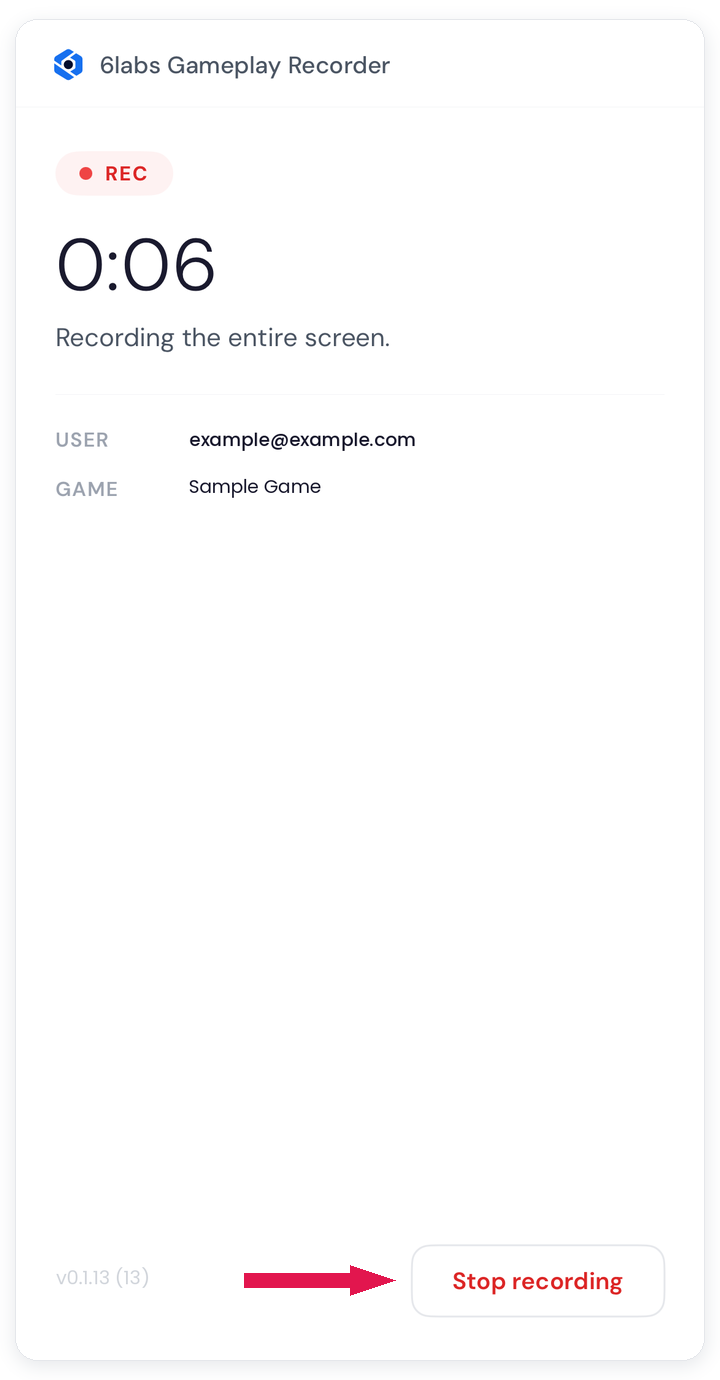
- When you finish playing, return to the Gameplay Recorder and tap Stop recording.
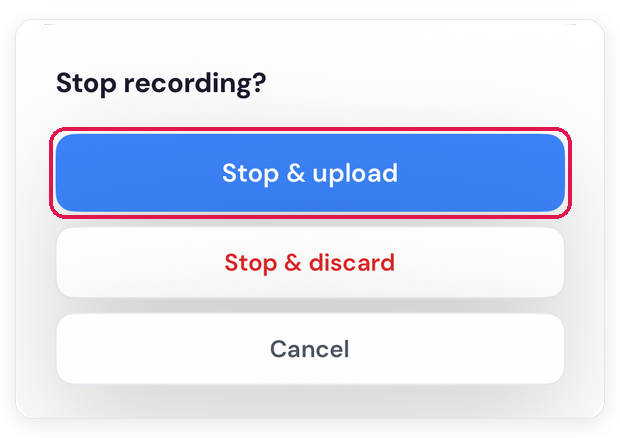
- Choose Stop & upload to upload the recording, Stop & discard to delete it, or Cancel to keep recording.
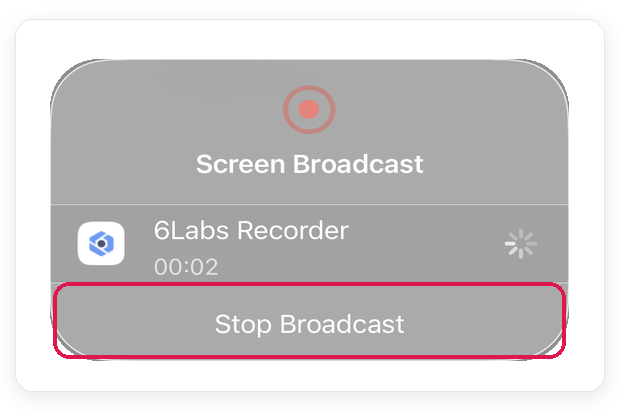
- iOS then shows the Screen Broadcast sheet. Tap Stop Broadcast to finish.
5. Recording Uploads
Uploads start automatically when a session ends, unless you discard it, and the recordings become available in your 6labs Gameplay Library.
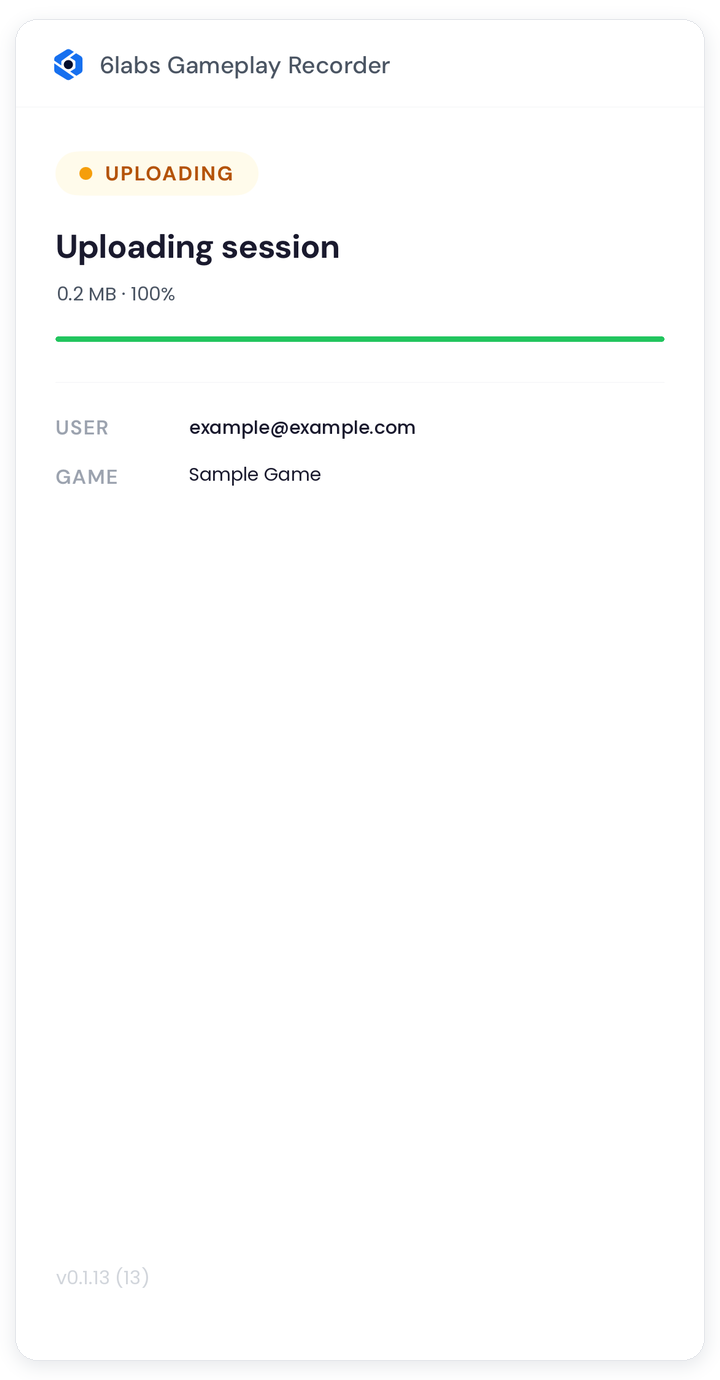
- Upload progress: While a session uploads, the app shows Uploading session and its progress.
- If an upload fails, the recordings are saved locally even if Keep local copies is turned off. These files will be available in the recordings folder (On My iPhone › 6labs Gameplay Recorder › Recordings in the Files app).
- Go to Settings and tap the recordings folder link, as shown below:
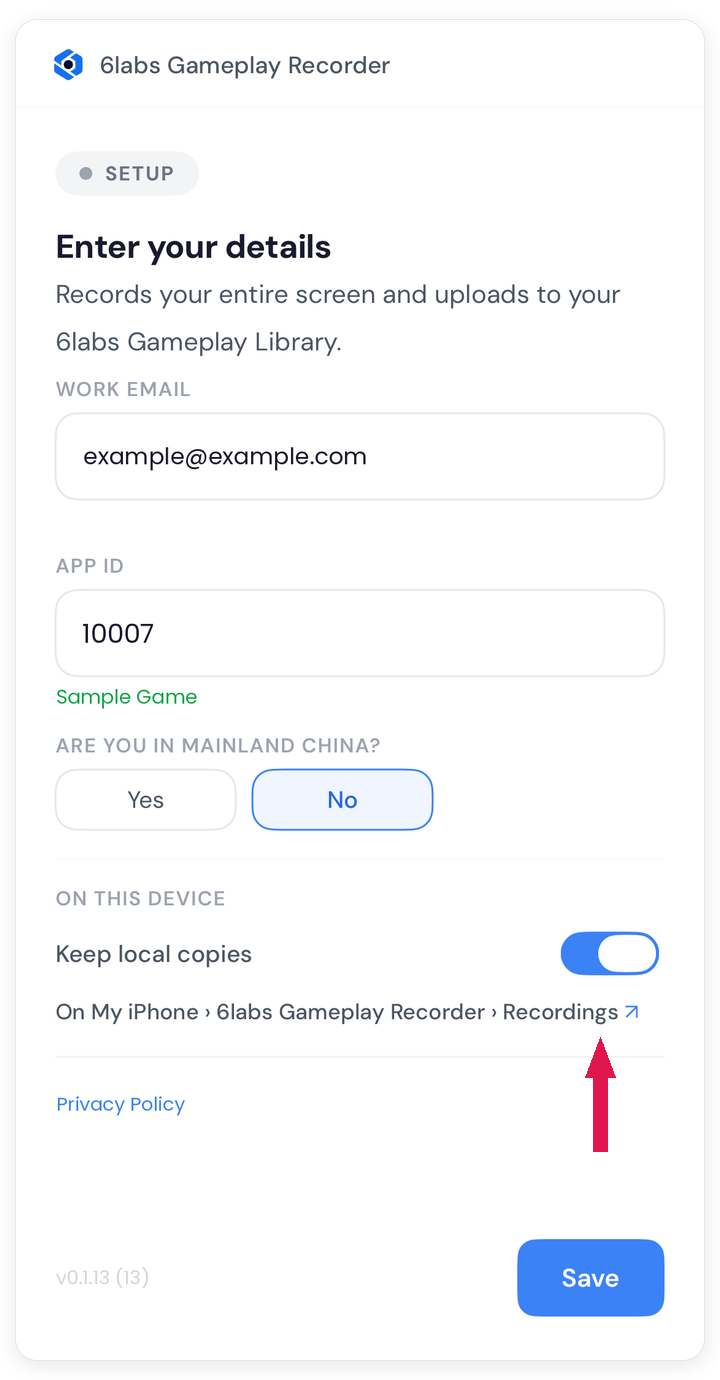
- Go to Settings and tap the recordings folder link, as shown below:
Table of Contents
Table of Contents
- Overview
- For Windows
- For Android
- For iOS
- Additional Guides